How to Deploy a Node.js App to Production
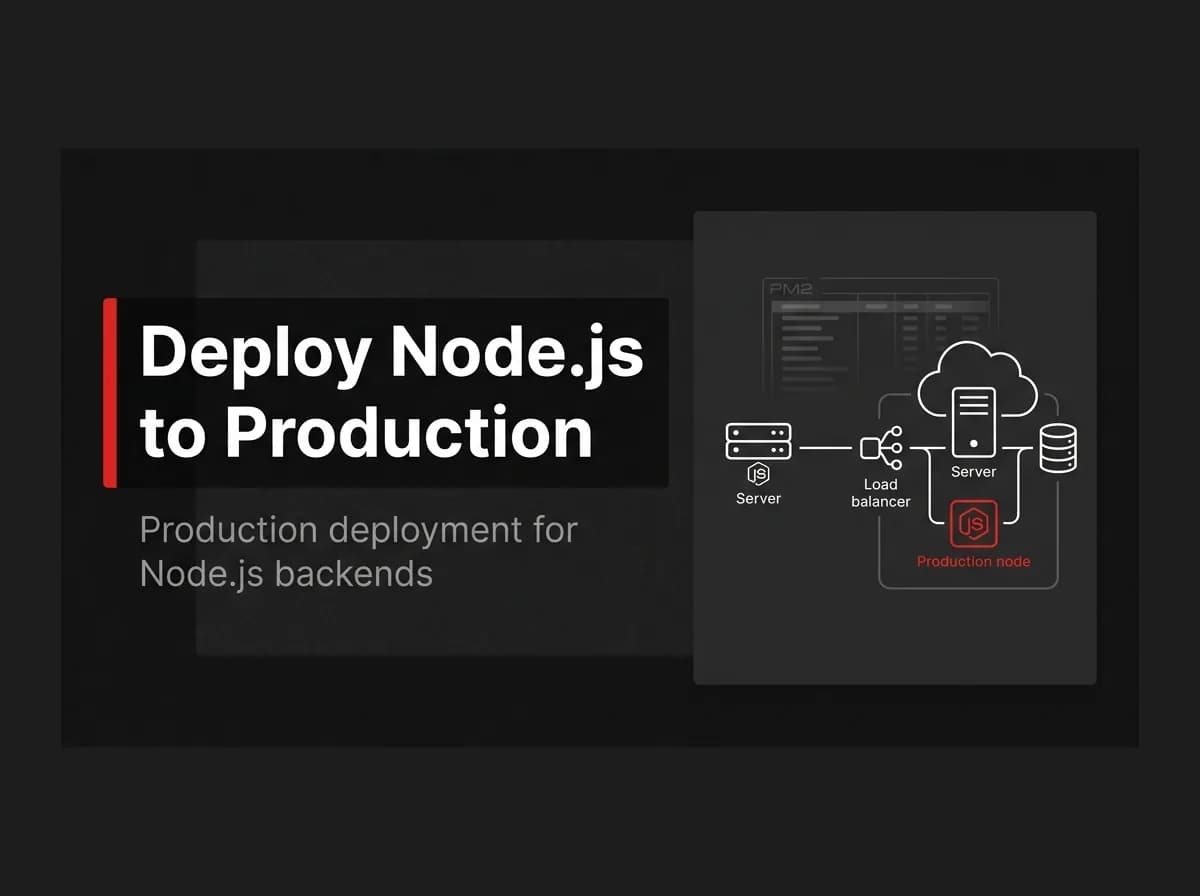
If you searched deploy node app and landed here, good: you're past the tutorial stage and need the boring parts nobody blogs about. This walkthrough works with any host: Railway, Render, Fly.io, or a VPS you manage yourself, and it applies to any Node.js app, Express or otherwise. You already have working code. What's missing is usually environment config, a container, health checks, and logs that tell you something useful when things go wrong.
Quick answer
To deploy a Node app to production, build it first, then set environment variables for a production environment instead of reusing your local .env. Package the app in a Docker container so it runs the same way everywhere, then run that container on a PaaS like Railway, Render, or Fly.io, or on your own server behind a reverse proxy. Wire up health checks, automatic restarts, and centralized logs before you call it done: skip those three and you'll hear about outages from your users before your monitoring says a word.
Deploying a Node app means running your built server reliably in a production environment, distinct from leaving node server.js open in a terminal tab you might close by accident.
Prepare Your Node App for Production
Start with environment variables. Separate config from code: keep production secrets (database URLs, API keys, JWT secrets) out of the repository entirely, and load them from your host's environment settings or a secrets manager.
Validate on startup: check for required environment variables when the process boots and exit immediately if any are missing. A server that starts successfully with a missing DATABASE_URL and fails on the first request is harder to debug than one that refuses to boot at all.
Build once, run everywhere: if you're using TypeScript, compile to plain JavaScript ahead of time (tsc or your bundler's build step) rather than running through ts-node in production. Set NODE_ENV=production so Express, your ORM, and any middleware skip their development-only code paths.
Install with npm ci, not npm install: it installs exactly what's in your lockfile, which keeps your production dependencies identical to what you tested locally.
Pro tip: Fail fast on missing config. A server that refuses to boot with a bad environment variable is far easier to debug than one that starts anyway and fails somewhere downstream.
I once deployed a Node.js API that passed its build, started cleanly, and returned a healthy response from the root route. Within an hour, users reported that every login attempt ended with a server error.
The production service had its database URL and OAuth credentials, but the session secret was missing. Local development loaded the value from .env, while the hosting platform expected it to be added manually. The app did not validate the variable during startup, so the process stayed online until the authentication code tried to create a session.
The logs made the incident slower to diagnose. The API returned a generic 500 response and recorded the error without the route, request ID, or missing configuration key. I initially checked the database and OAuth callback settings before tracing the failure back to the session configuration.
After that deploy, I added a startup schema that validates every required production variable before the server begins accepting traffic. I also changed the health check to exercise a database query and added structured request logs.
A failed deployment is inconvenient. A deployment that reports itself as healthy while every login request fails is much worse. Production configuration should be treated as part of the application, tested and validated with the same care as the code.
Containerize It With Docker
Docker solves a specific problem: the gap between "works on my machine" and "works on the server." A container packages your app with its exact Node version and dependencies, so the environment you tested is the environment that runs in production.
Here's a minimal multi-stage production Dockerfile for a Node API (Dockerfile):
dockerfile
# Stage 1: install deps and build
FROM node:20-slim AS build
WORKDIR /app
COPY package*.json ./
RUN npm ci
COPY . .
RUN npm run build

# Stage 2: run only what's needed
FROM node:20-slim AS runner
WORKDIR /app
ENV NODE_ENV=production
COPY --from=build /app/package*.json ./
RUN npm ci --omit=dev
COPY --from=build /app/dist ./dist
EXPOSE 3000
CMD ["node", "dist/server.js"]
(untested-here: verify build output paths and Node version against your own project before deploying.)
The multi-stage build matters more than it looks: your final image only contains production dependencies and compiled output, not your dev tooling, test files, or node_modules cache. That keeps the image smaller and cuts your attack surface.
Further reading: Docker's own docs cover multi-stage builds in more depth: Docker: Multi-stage builds.
This is also the exact shape FastStaq ships out of the box: a Dockerized pnpm monorepo with a dedicated production server image (Dockerfile.server) already wired up for the Express API, so you're not writing this file from scratch.
Note: Add a
.dockerignorefile (node_modules,.env,.git, test files) so you don't accidentally bake secrets or bloat into the image.
Deploy Node App to Production: Choosing Where to Run It
Once you have an image, you need somewhere to run it. Broadly, you're choosing between a PaaS and self-hosting.
PaaS platforms like Railway, Render, and Fly.io take your Docker image, or your repo directly, and handle the server, networking, and TLS certificate for you. You push, they build and deploy.
Self-hosting means running the container yourself, typically on a VPS, behind a reverse proxy like Nginx or Caddy that handles TLS and routes traffic to your container. You get full control over the box; you also own every update, security patch, and 2 a.m. disk-space alert.
Note: Pricing and free-tier limits on PaaS platforms change often. Check each provider's site directly for current numbers before you commit.
Dimension | PaaS (Railway, Render, Fly.io) | Self-hosted (VPS + reverse proxy) |
|---|---|---|
Setup time | Minutes to first deploy | Hours: server hardening, proxy config, TLS |
Ongoing maintenance | Handled by the platform | You patch the OS, Docker, and proxy |
Infrastructure control | Limited to platform's options | Full control over resources and networking |
Scaling | Usually a config change or slider | Manual, or you add your own orchestration |
Best fit | Small teams, fast iteration | Teams with specific compliance or cost needs at scale |
I'd default to a PaaS for a new API unless you have a specific reason not to: compliance requirements, existing infrastructure, or cost at a scale where self-hosting pays for itself. Skip self-hosting if you're pre-revenue and want to spend your time on the product instead of the box it runs on.
Add Health Checks and Automatic Restarts
A health check is an endpoint your platform or process manager pings to confirm the app is actually working, not just running.
Add a lightweight route that checks the pieces your app depends on:
javascript
// server/src/routes/health.ts
import { Router } from "express";
import { prisma } from "../db";

const router = Router();

router.get("/health", async (req, res) => {
  try {
    await prisma.$queryRaw`SELECT 1`;
    res.status(200).json({ status: "ok" });
  } catch (err) {
    res.status(503).json({ status: "unavailable" });
  }
});

export default router;
(untested-here: adjust the database check to match your ORM and connection setup.)
Point your platform's health check setting at /health. On Railway, Render, and Fly.io, this is a field in the service settings. If you're self-hosting with Docker, add a HEALTHCHECK instruction to your Dockerfile, or configure restart: unless-stopped in your compose file so a crashed container comes back on its own.
Remember: A restart policy without a real health check just restarts a broken app on a loop. Check something that reflects whether the app can serve a request, like a database ping, not just that the process is alive.
Logs and Monitoring That Actually Help
Structured logs, written as JSON with consistent fields, are far easier to search and alert on than plain text lines. Use a library like pino or winston instead of scattered console.log calls.
Log what you'll need to debug an incident: request ID, route, status code, and duration, at minimum. Add a unique request ID per request and pass it through your logs so you can trace one request across multiple log lines.
Ship logs somewhere centralized. Most PaaS platforms stream logs by default; if you're self-hosting, forward container logs to a log aggregator rather than relying on docker logs during an outage.
Production Deployment Checklist
Run through this before you call a deploy done:
Environment variables set for production, validated on startup, no secrets in the repo
NODE_ENV=productionset and build step run ahead of timeDocker image built with a multi-stage
Dockerfile, tested locally withdocker runHost chosen: PaaS or self-hosted, with TLS handled either way
/healthendpoint wired up and pointed to by your platform or restart policyRestart policy configured so a crash recovers without a manual redeploy
Structured logs shipping to a centralized location
Database migrations run against production before traffic hits the new version
FAQ
Do I need Docker to deploy a Node app to production? No. Some PaaS platforms will build and run a Node app directly from your repository without a Dockerfile. Docker becomes worth the setup once you want the same environment across local, staging, and production, or once you're self-hosting.
What's the real difference between a PaaS and self-hosting a Node app? A PaaS handles the server, TLS, and most of the ops work for you in exchange for less low-level control. Self-hosting gives you full control over the infrastructure, but you own every patch, certificate renewal, and outage response yourself.
How do I handle environment variables securely in production? Keep them out of your repository and load them through your host's environment settings or a secrets manager. Validate that all required variables are present when the app boots, and fail immediately if any are missing rather than letting the app start in a broken state.
Do I still need a process manager like PM2 if I'm using Docker? Usually not for the main process; Docker's restart policy, or your PaaS's equivalent, handles restarts at the container level. PM2 still has a place if you're running multiple Node processes on a single server without Docker.
How do I know if my Node app is actually production-ready? Run through the checklist above: production environment variables, a build step, a container, a health check, a restart policy, and centralized logs. If any of those are missing, you have a working app, not a production-ready one yet.
Where to go next
Deploying a Node app to production comes down to a short list of steps: build it properly, containerize it, pick a host, and add the health checks and logs that tell you when something breaks. None of it is complicated on its own. Do it before you ship, and you won't be debugging it live during your first outage.
This guide covers the server side. For the full path from code to a paying customer, see our guide on deploying a SaaS app to production on our blog.
If you'd rather skip writing the Dockerfile, env validation, and health checks yourself, FastStaq ships all of it pre-wired: a Dockerized pnpm monorepo with a production server image already wired up, because we'd rather you spend that time on your own product. It's $299 one time, with lifetime access to the source: no subscription, no per-seat pricing.